Installation of Python and Python packages 💻
There are several Python implementations such as Jython, MicroPython, CircuitPython, PyPy, RustPython and more. We use the traditional CPython.
Tip
If for some reason you have not been able to install Python 3, it
is possible to practice the exercises of the course thanks to this
 (internet connection is required, might take eight minutes
to start, please be patient).
(internet connection is required, might take eight minutes
to start, please be patient).



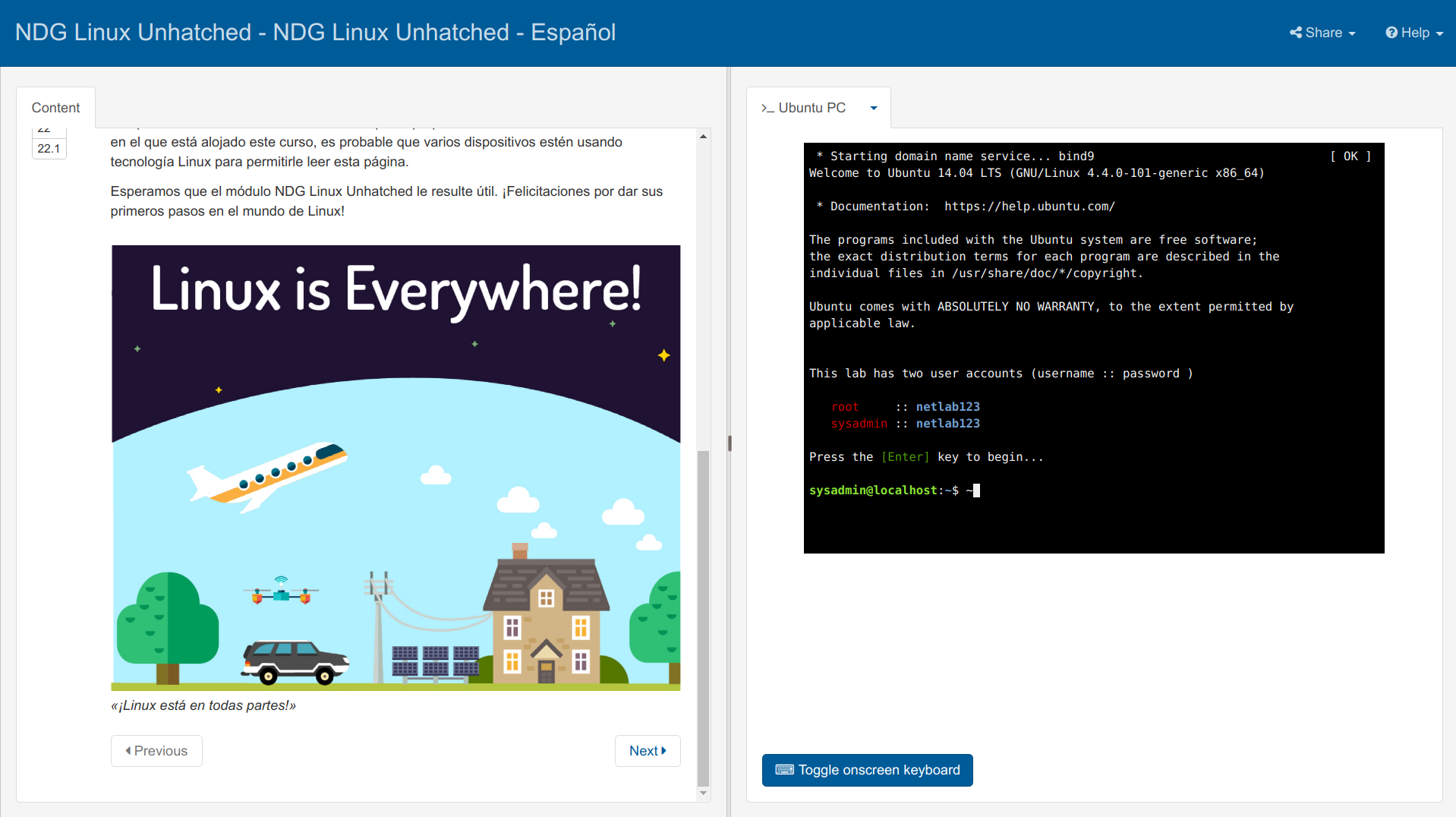
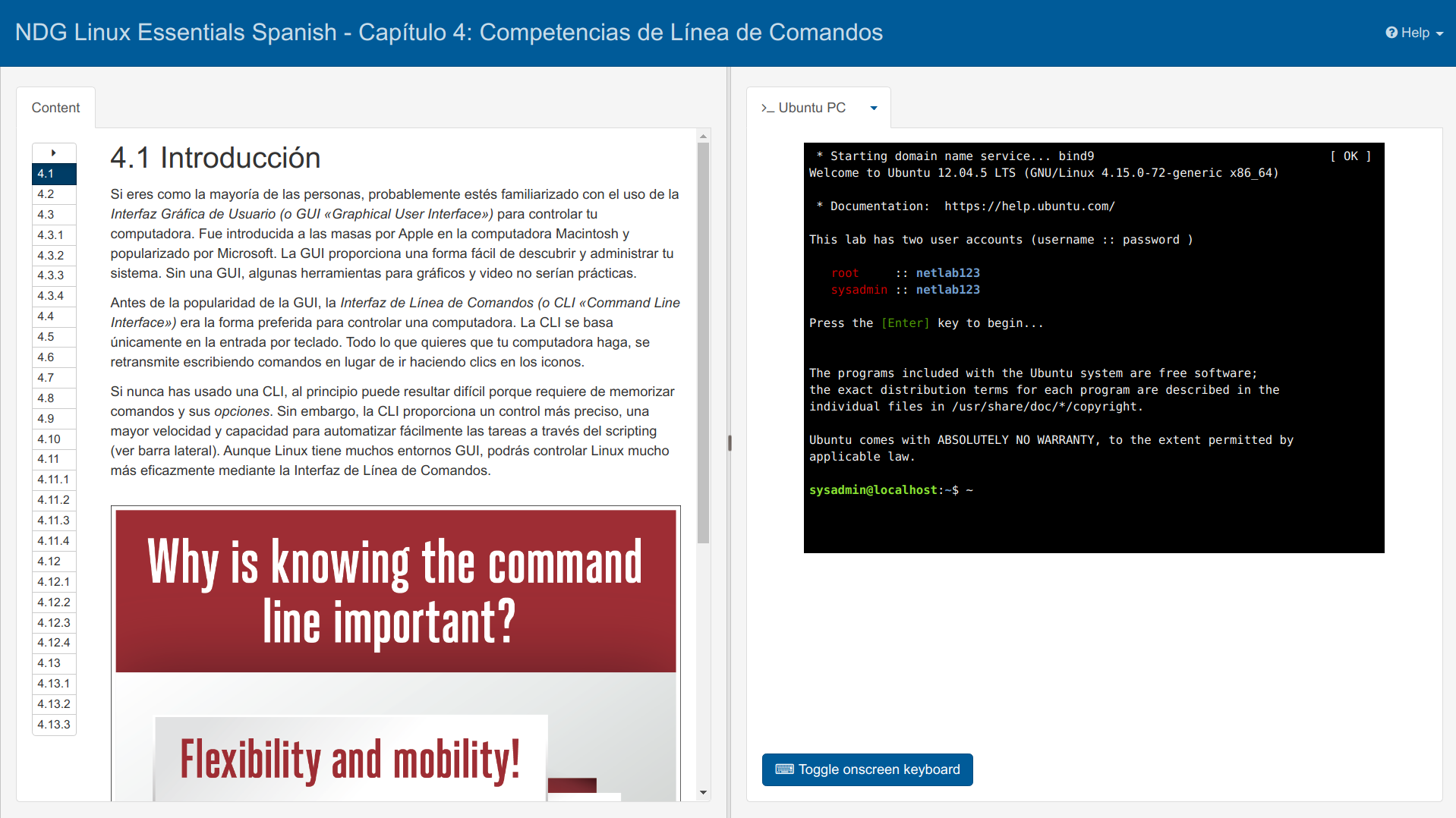
Please open the terminal emulator and according to the package manager of your distribution and run one of these lines.
[user@hostname ~]$ sudo dnf install python38   # Fedora, RHEL, Clear Linux.
[user@hostname ~]$ sudo apt install python3    # Debian, deepin, elementary, Raspbian.
[user@hostname ~]$ sudo pacman -Sy python      # Arch Linux, Manjaro.
[user@hostname ~]$ sudo zypper install python3 # OpenSUSE (Tumbleweed, Leap), SUSE.
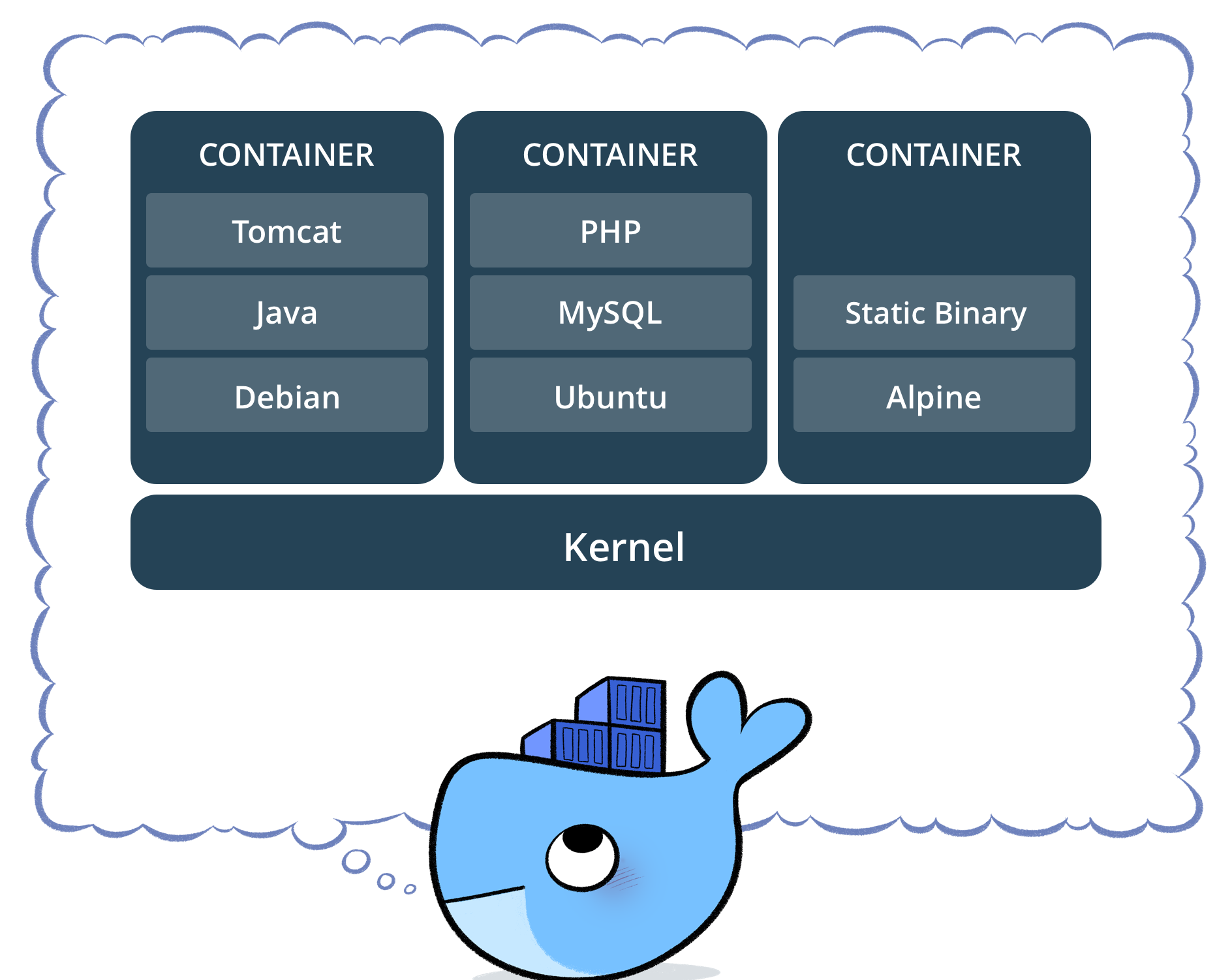
Docker is a free software platform used for packaging software into standardized units for development, shipment and deployment.
This is an image with Alpine Linux plus glibc library with Python 3.8.2 and modules. Although there are people who do not suggest Alpine with Python, since this is the first version and its simplicity in construction, this container will be used. We encourage you to use it. The author will run the programs in this environment.
[user@hostname ~]$ git clone https://github.com/carlosal1015/docker-scientific-python
[user@hostname ~]$ cd docker-scientific-python
[user@hostname ~]$ docker-compose up -d
or
[user@hostname ~]$ docker run -it --name scientific-python \
                           -v $(PWD):/notebooks \
                           -p 8888:8888 -d \
                           carlosal1015/docker-scientific-python

Omit the first two steps if already have installed brew package manager 😄. For more details to install this manager and how to upgrade Python safely look this post.
1 2 3 | Users-name:~ User$ ruby -e "$(curl -fsSL https://raw.githubusercontent.com/Homebrew/install/master/install)"
Users-name:~ User$ export PATH="/usr/local/opt/python/libexec/bin:$PATH" >> ~/.profile
Users-name:~ User$ brew install python
|
To enable us to use the Python interpreter, the text editors like
nano, vim or emacs, the version control system git and the new
Windows Subsystem for Linux 2, to name a few, as in a
Unix-like system it is
recommended to install the new product
in the operating system updated. Download from the store.
Cygwin and Cmder
are good too.



If wants verify the integrity of the Python’s installer, i.e. the contents of the file have not been changed and have PowerShell version 4 or later, please open a PowerShell console and check the version as follows:
PS C:\> $PSVersionTable.PSVersion # Check PowerShell version

Major  Minor  Patch  PreReleaseLabel BuildLabel
-----  -----  -----  --------------- ----------
7      0      0
Note
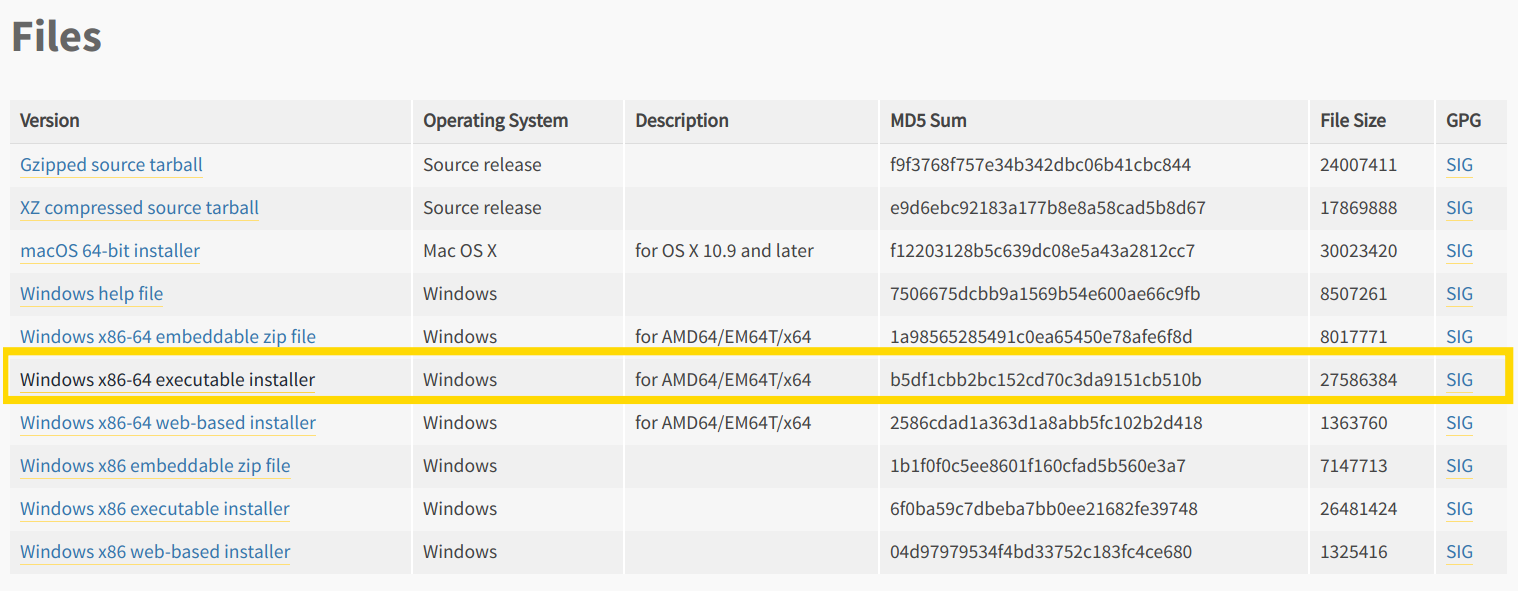
Can choose a web-based (online installation) or executable installer (offline installation) for Python, the details are in this guide to install Python 3. More info.
PS C:\> $source = "https://www.python.org/ftp/python/3.8.2/python-3.8.2-amd64.exe"
PS C:\> $destination = "$PSScriptRoot/python-3.8.2-amd64.exe"
PS C:\> Invoke-WebRequest -Uri $source -OutFile $destination
Then, we use the cmdlet Get-FileHash to computes the hash value, a hash assigns a unique value to the contents of a file.
PS C:\> Get-FileHash -? # Help for Get-FileHash

NAME
    Get-FileHash

SYNTAX
    Get-FileHash [-Path] <string[]> [[-Algorithm] {SHA1 | SHA256 | SHA384 | SHA512 | MD5}] [<CommonParameters>]

    Get-FileHash [-LiteralPath] <string[]> [[-Algorithm] {SHA1 | SHA256 | SHA384 | SHA512 | MD5}] [<CommonParameters>]

    Get-FileHash [-InputStream] <Stream> [[-Algorithm] {SHA1 | SHA256 | SHA384 | SHA512 | MD5}] [<CommonParameters>]
PS C:\> Get-FileHash ./python-3.8.2-amd64.exe -Algorithm MD5 | Format-List

Algorithm : MD5
Hash      : B5DF1CBB2BC152CD70C3DA9151CB510B
Path      : C:\python-3.8.2-amd64.exe
Alright, the hash value matches as seen in the image below.
PS C:\> $args = @("Shortcuts=0","Include_launcher=1","InstallLauncherAllUsers=1")
PS C:\> Start-Process -Filepath "$PSScriptRoot/python-3.8.2-amd64.exe" -ArgumentList $args
or for example
PS C:\> $installer = "C:\python-3.8.2-amd64.exe"
PS C:\> & $installer /passive InstallAllUsers=1 PrependPath=1 Include_test=0
If instead you want to install Python in graphical mode, then
open the python-3.8.2-amd64.exe and follow carefully the
images bellow, then will have Python installed without problems.
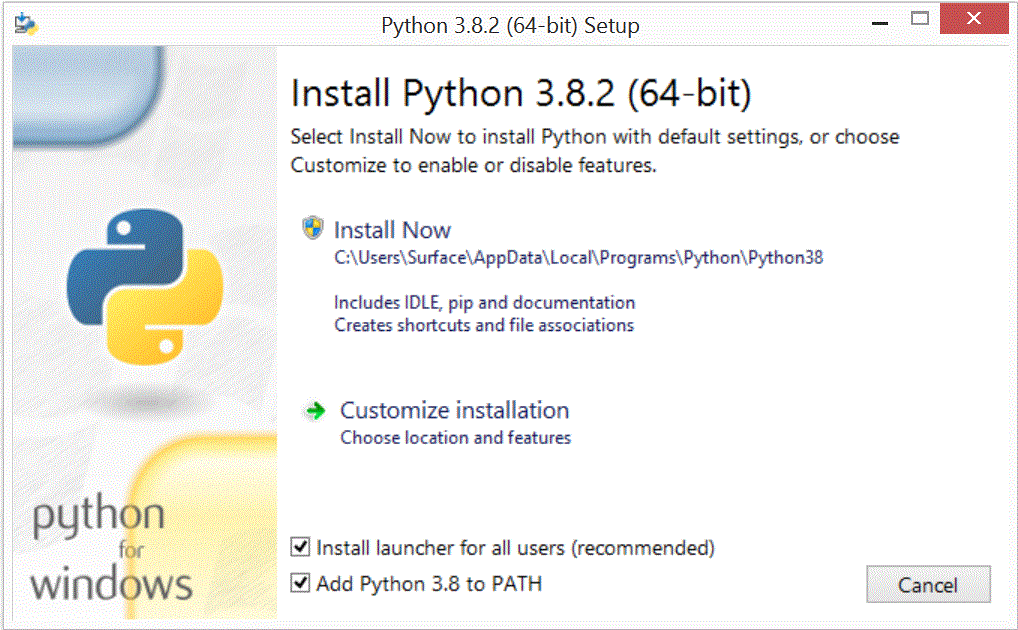
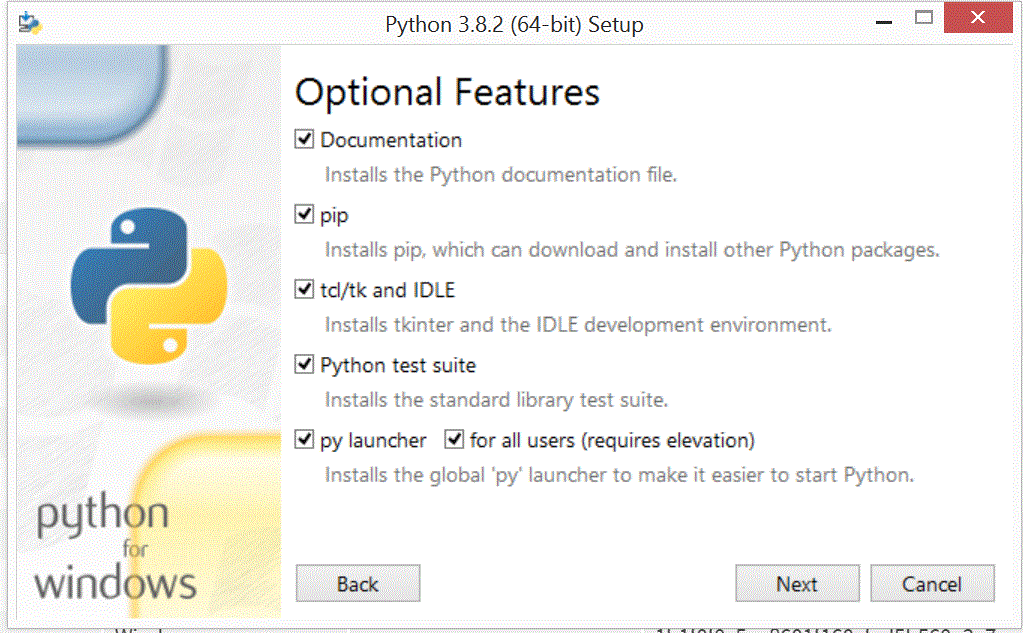
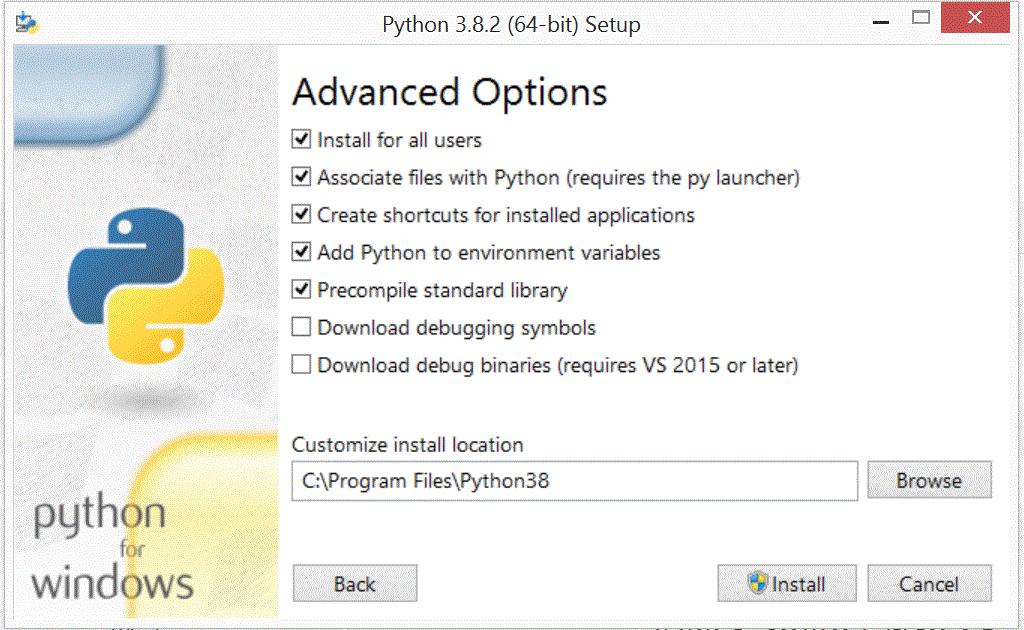
Once installed the new Windows terminal with success, then please follow the instructions since step four from the documentation or follow this friendly guide.
Finally, download your Linux flavor and there install Python as in Linux.
First install Chocolatey and install Python since PowerShell.
PS C:\> choco install python

(Pip Installs Packages)

management
Install the package (or add it to your requirements.txt file 😀):
[user@hostname ~]$ pip install matplotlib # numpy it's included
or
[user@hostname ~]$ pip install -r requirements.txt
In the Introductory Autumn School on Scientific Computing they advices us to install Anaconda distribution.
On macOS system, open the terminal emulator and put:
Users-name:~ User$ curl -sfL https://git.io/Jv91a | sh -
On GNU/Linux or WSL2, open the terminal emulator and put:
[user@hostname ~]$ curl -sfL https://git.io/Jv91R | sh -
[user@hostname ~]$ yay -Sy miniconda3 # Arch Linux, Manjaro
After the conda installation, please install matplotlib in a new environment.
[user@hostname ~]$ conda create -n scientificpython python=3.8 matplotlib
[user@hostname ~]$ conda activate scientificpython
Warning
The instruction curl -flags URL | sh is a direct way to execute code over the internet,
always examine the script before to execute and only trusted from secure sites.
Note
Python has several package administrators, such as pip, and some others integrate a virtual environment. A brief explanation of the most popular managers is found here.